> ## Documentation Index
> Fetch the complete documentation index at: https://docs.kaleidoswap.com/llms.txt
> Use this file to discover all available pages before exploring further.
# Getting Started
> Create or import a KaleidoSwap Extension wallet and choose your network accounts
## Onboarding
When you first open the KaleidoSwap Extension, the onboarding flow guides you through initial setup.
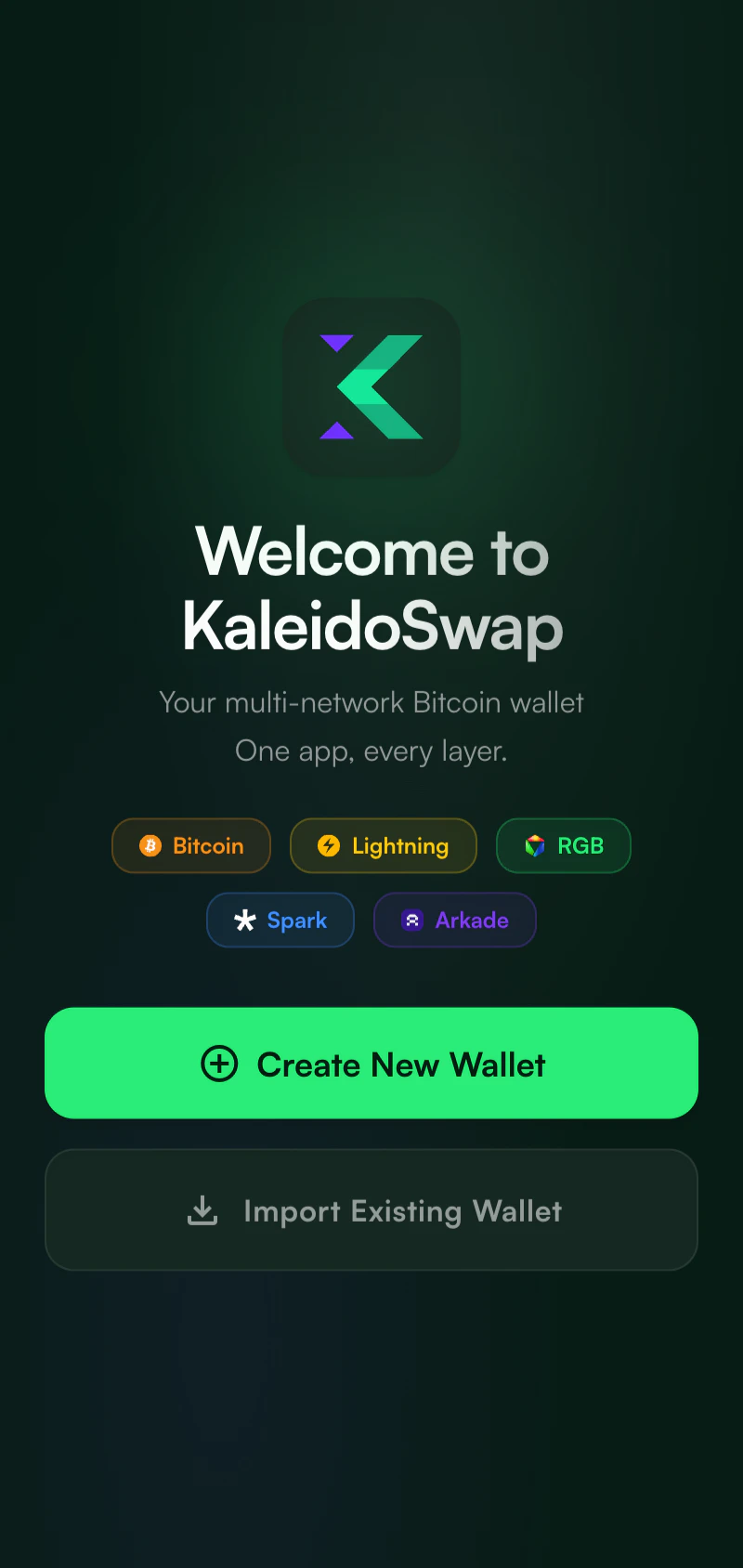 Choose **Create New Wallet** or **Import Existing Wallet**.
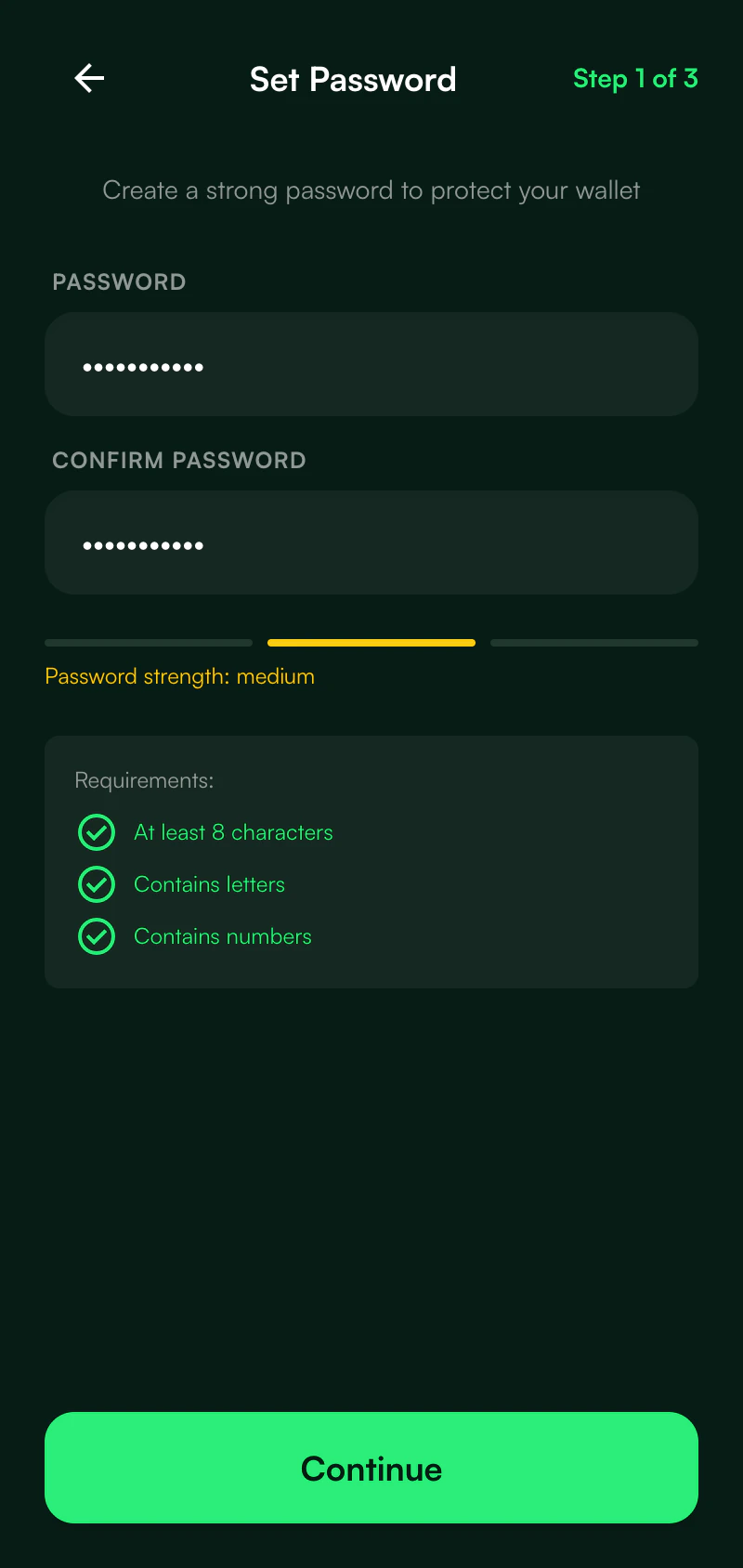
Set a secure password to protect your wallet. This password is used to:
* Unlock the extension after it auto-locks
* Encrypt your stored wallet data
Choose a strong password and remember it (this cannot be recovered).
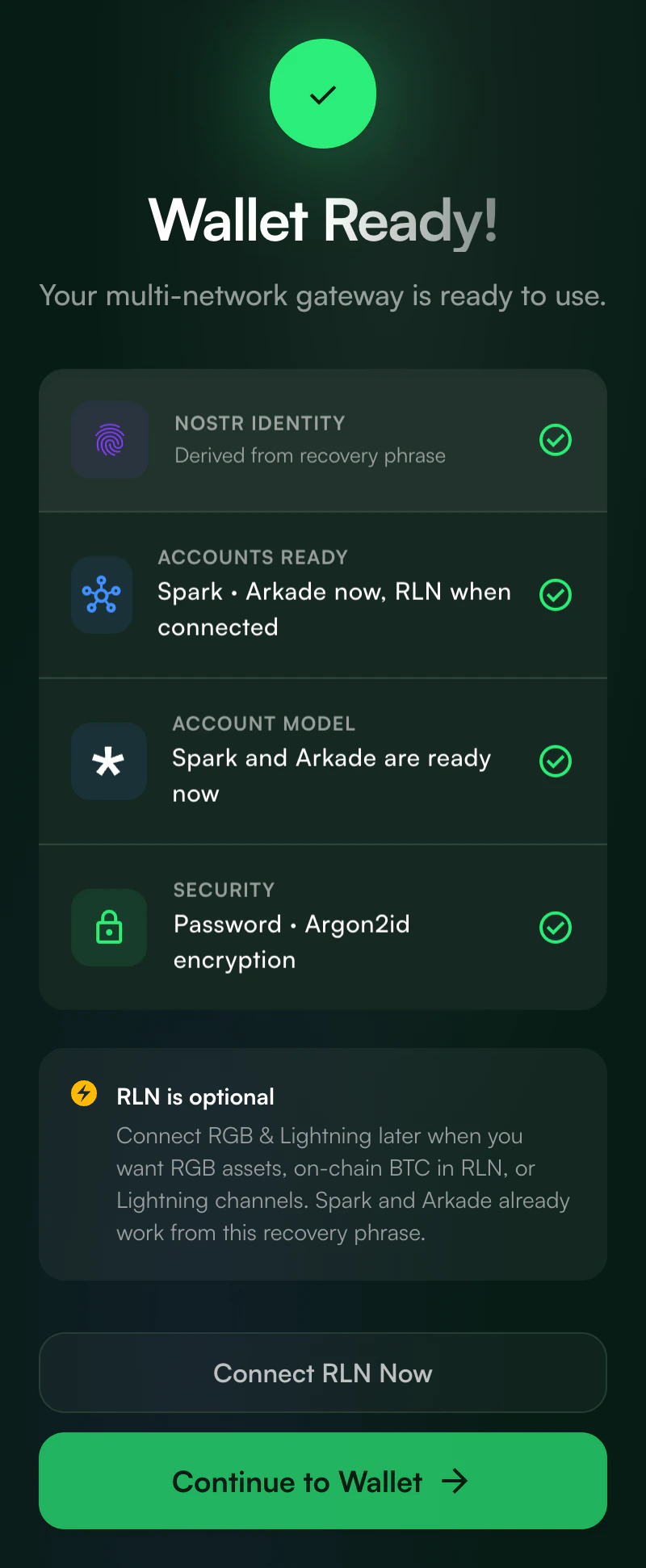
The KaleidoSwap Extension generates a 12-word recovery phrase for new wallets. This phrase controls Spark, Arkade, and the Nostr identity derived by the extension.
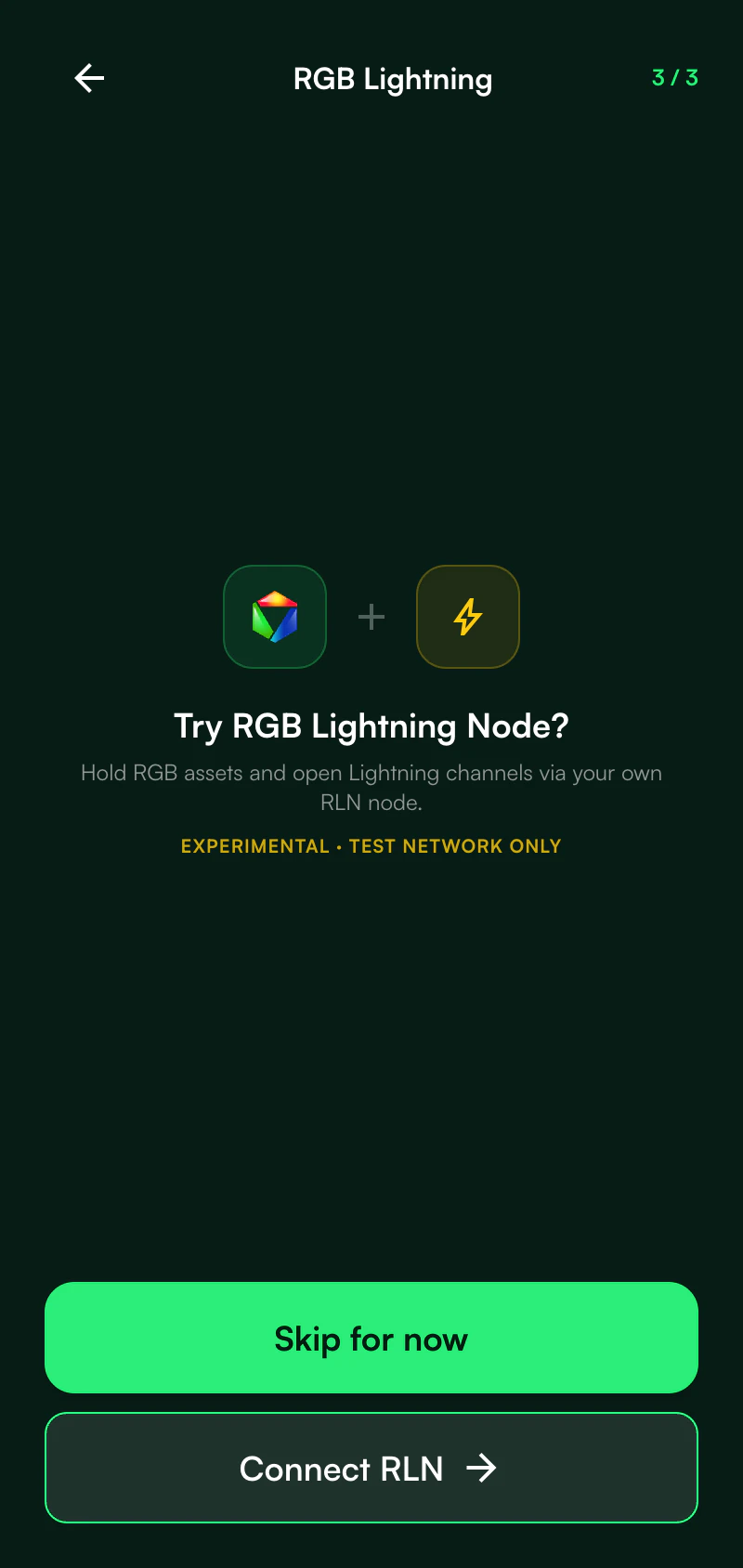
Decide whether to connect an RGB Lightning Node during onboarding. RLN support is optional and experimental; Spark and Arkade can be used without it.
Continue to the wallet. The KaleidoSwap Extension starts with Spark and Arkade accounts and adds RLN features when you connect a node.
Choose **Create New Wallet** or **Import Existing Wallet**.
Set a secure password to protect your wallet. This password is used to:
* Unlock the extension after it auto-locks
* Encrypt your stored wallet data
Choose a strong password and remember it (this cannot be recovered).
The KaleidoSwap Extension generates a 12-word recovery phrase for new wallets. This phrase controls Spark, Arkade, and the Nostr identity derived by the extension.
Decide whether to connect an RGB Lightning Node during onboarding. RLN support is optional and experimental; Spark and Arkade can be used without it.
Continue to the wallet. The KaleidoSwap Extension starts with Spark and Arkade accounts and adds RLN features when you connect a node.
 ## RGB Lightning Node
RLN is optional. Connect it if you want RGB assets, RGB invoices, RGB Lightning channels, or maker-based RGB swaps.
## RGB Lightning Node
RLN is optional. Connect it if you want RGB assets, RGB invoices, RGB Lightning channels, or maker-based RGB swaps.
 ### Connection Details
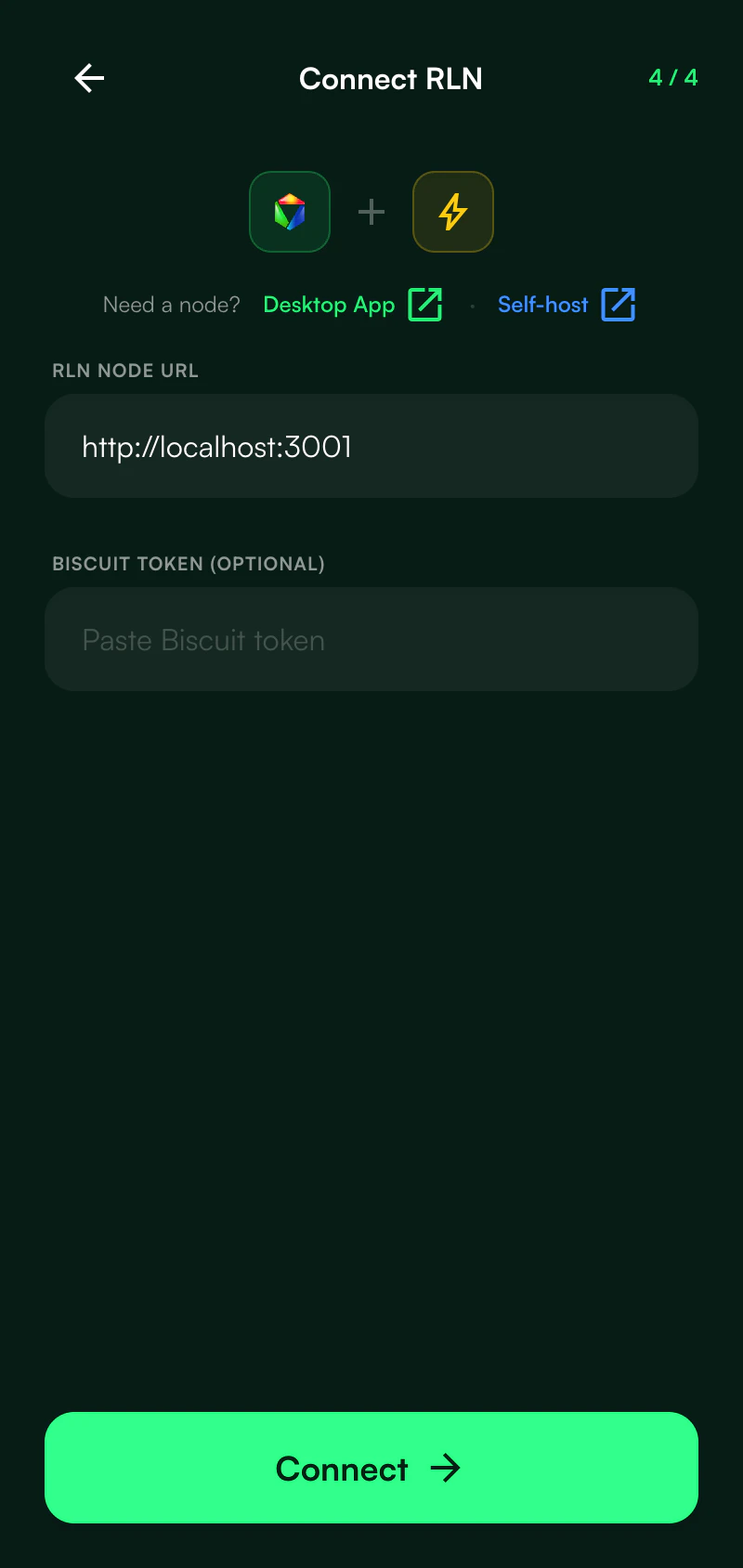
When opting in, enter:
* **RLN Node URL** - The node endpoint, such as `http://localhost:3001`
* **Biscuit token** - Optional authentication token when your node requires one
### Connection Details
When opting in, enter:
* **RLN Node URL** - The node endpoint, such as `http://localhost:3001`
* **Biscuit token** - Optional authentication token when your node requires one
 RGB Lightning is shown as an experimental test-network feature in onboarding. You can skip it and connect later from Settings.
## Dashboard Overview
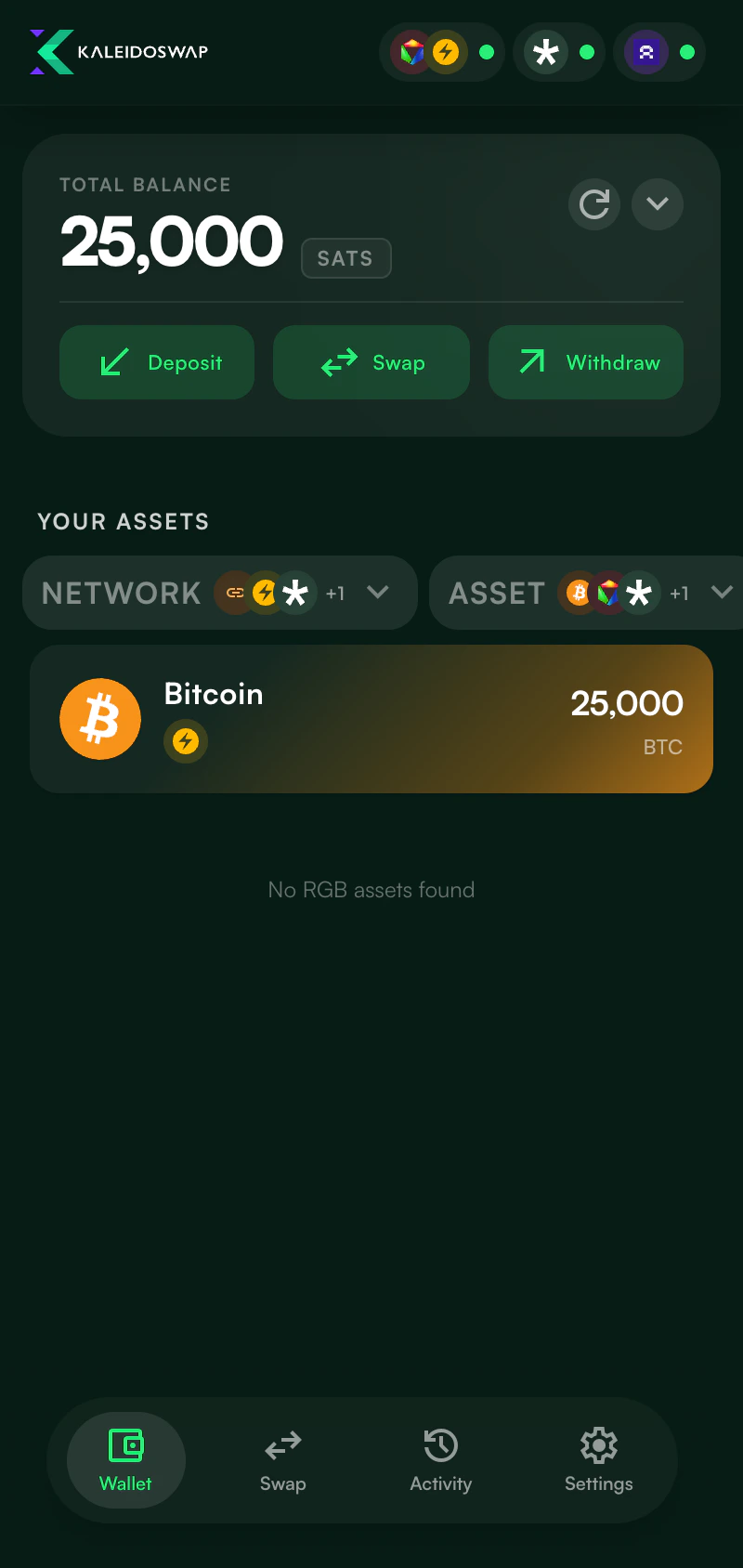
After setup, the dashboard shows account status and assets across the connected protocols.
RGB Lightning is shown as an experimental test-network feature in onboarding. You can skip it and connect later from Settings.
## Dashboard Overview
After setup, the dashboard shows account status and assets across the connected protocols.
 ### Account Status
The dashboard surfaces Spark, Arkade, and RLN account state. Each account shows whether it is ready, offline, optional, or still syncing.
### Asset Filters
Use the asset and network filters to focus on:
* BTC across all protocols
* Spark assets
* Arkade assets
* RGB assets when RLN is connected
* Bitcoin L1, Lightning, Spark, and Arkade network slices
### Actions
| Action | Description |
| ------------ | ------------------------------------------------------------------------------ |
| **Deposit** | Generate a receive address or invoice for the selected asset and account route |
| **Withdraw** | Send to a detected destination type through the best compatible route |
| **Swap** | Open the in-extension swap interface |
## Lock and Unlock
### Auto-Lock
The KaleidoSwap Extension automatically locks after a period of inactivity. When locked, the extension requires your password before it decrypts the mnemonic in memory again.
### Manual Lock
Use **Settings > Lock Wallet** to lock immediately.
### Changing Lock Timeout
Go to **Settings > Preferences** to adjust the auto-lock timeout and Bitcoin unit display.
### Account Status
The dashboard surfaces Spark, Arkade, and RLN account state. Each account shows whether it is ready, offline, optional, or still syncing.
### Asset Filters
Use the asset and network filters to focus on:
* BTC across all protocols
* Spark assets
* Arkade assets
* RGB assets when RLN is connected
* Bitcoin L1, Lightning, Spark, and Arkade network slices
### Actions
| Action | Description |
| ------------ | ------------------------------------------------------------------------------ |
| **Deposit** | Generate a receive address or invoice for the selected asset and account route |
| **Withdraw** | Send to a detected destination type through the best compatible route |
| **Swap** | Open the in-extension swap interface |
## Lock and Unlock
### Auto-Lock
The KaleidoSwap Extension automatically locks after a period of inactivity. When locked, the extension requires your password before it decrypts the mnemonic in memory again.
### Manual Lock
Use **Settings > Lock Wallet** to lock immediately.
### Changing Lock Timeout
Go to **Settings > Preferences** to adjust the auto-lock timeout and Bitcoin unit display.
 ## Next Steps
Send, receive, and manage assets
Swap assets within the extension
Use the KaleidoSwap Extension with trusted DApps and Nostr
Common questions and troubleshooting
## Next Steps
Send, receive, and manage assets
Swap assets within the extension
Use the KaleidoSwap Extension with trusted DApps and Nostr
Common questions and troubleshooting