> ## Documentation Index
> Fetch the complete documentation index at: https://docs.kaleidoswap.com/llms.txt
> Use this file to discover all available pages before exploring further.
# Swaps
> Swap assets directly within the KaleidoSwap Extension
## Overview
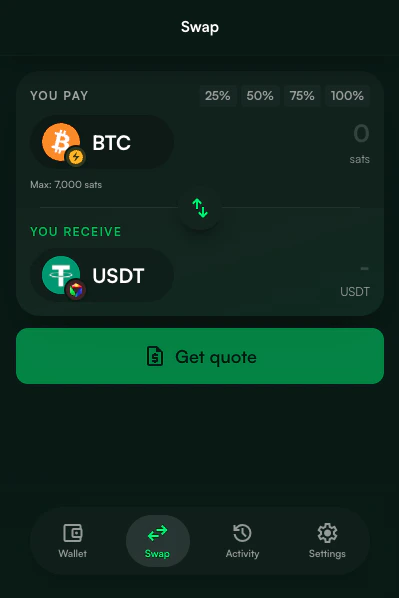
The KaleidoSwap Extension includes an in-extension swap surface. It can use KaleidoSwap maker pairs when the optional RGB Lightning Node account is connected, and it can use Spark/Flashnet routes when Spark pools are available.
 ## Prerequisites
Before swapping:
1. At least one compatible swap venue must be available
2. The relevant account must be connected
3. You must have sufficient balance for the source asset and network fees
## Swap Flow
Click the **Swap** button on the dashboard action grid.
Choose the **From** and **To** assets:
* **From** - The asset you want to trade (e.g., BTC)
* **To** - The asset you want to receive
Enter the amount you want to swap. The extension fetches a quote from the selected venue showing:
* Exchange rate
* Output amount
* Fees
* Expiry
The swap preview screen shows:
* From asset and amount
* To asset and amount
* Exchange rate
* Fee breakdown
* Total cost
Confirm the swap before the quote expires.
The swap status screen shows real-time progress:
* Order creation
* Payment processing
* Swap execution
* Completion
Logs are displayed for transparency.
## Real-Time Quotes
When you enter an amount, the KaleidoSwap Extension fetches a quote from the active venue:
| Quote Field | Description |
| ----------------- | --------------------------------------------------------- |
| **Rate** | Exchange rate between the two assets |
| **Output Amount** | How much you will receive |
| **Fee** | Protocol and network fees |
| **Expiry** | How long the quote is valid |
| **Venue** | The route provider, such as KaleidoSwap maker or Flashnet |
Quotes update in real time as you change the amount.
## Swap Status
After confirming, the swap progresses through several stages:
| Status | Description |
| ---------------------- | -------------------------------------------------- |
| **Creating Order** | The swap order is being created |
| **Processing Payment** | Your payment is being processed |
| **Executing** | The maker is processing the swap |
| **Completed** | The swap is done and you have received the asset |
| **Failed** | Something went wrong -- check the logs for details |
If no compatible venue or pair is available, the KaleidoSwap Extension shows an empty state instead of a quote. Wallet features such as deposits, withdrawals, balances, and settings still work.
## Tips
Make sure you have enough of the source asset to cover both the swap amount and any fees.
Quotes expire after a short period. Review and confirm promptly to avoid needing a new quote.
If a swap fails, the status screen shows detailed logs that can help diagnose the issue.
## Prerequisites
Before swapping:
1. At least one compatible swap venue must be available
2. The relevant account must be connected
3. You must have sufficient balance for the source asset and network fees
## Swap Flow
Click the **Swap** button on the dashboard action grid.
Choose the **From** and **To** assets:
* **From** - The asset you want to trade (e.g., BTC)
* **To** - The asset you want to receive
Enter the amount you want to swap. The extension fetches a quote from the selected venue showing:
* Exchange rate
* Output amount
* Fees
* Expiry
The swap preview screen shows:
* From asset and amount
* To asset and amount
* Exchange rate
* Fee breakdown
* Total cost
Confirm the swap before the quote expires.
The swap status screen shows real-time progress:
* Order creation
* Payment processing
* Swap execution
* Completion
Logs are displayed for transparency.
## Real-Time Quotes
When you enter an amount, the KaleidoSwap Extension fetches a quote from the active venue:
| Quote Field | Description |
| ----------------- | --------------------------------------------------------- |
| **Rate** | Exchange rate between the two assets |
| **Output Amount** | How much you will receive |
| **Fee** | Protocol and network fees |
| **Expiry** | How long the quote is valid |
| **Venue** | The route provider, such as KaleidoSwap maker or Flashnet |
Quotes update in real time as you change the amount.
## Swap Status
After confirming, the swap progresses through several stages:
| Status | Description |
| ---------------------- | -------------------------------------------------- |
| **Creating Order** | The swap order is being created |
| **Processing Payment** | Your payment is being processed |
| **Executing** | The maker is processing the swap |
| **Completed** | The swap is done and you have received the asset |
| **Failed** | Something went wrong -- check the logs for details |
If no compatible venue or pair is available, the KaleidoSwap Extension shows an empty state instead of a quote. Wallet features such as deposits, withdrawals, balances, and settings still work.
## Tips
Make sure you have enough of the source asset to cover both the swap amount and any fees.
Quotes expire after a short period. Review and confirm promptly to avoid needing a new quote.
If a swap fails, the status screen shows detailed logs that can help diagnose the issue.