> ## Documentation Index
> Fetch the complete documentation index at: https://docs.kaleidoswap.com/llms.txt
> Use this file to discover all available pages before exploring further.
# Wallet Features
> Accounts, assets, deposits, withdrawals, activity, and settings
## Asset Management
 ### Viewing Balances
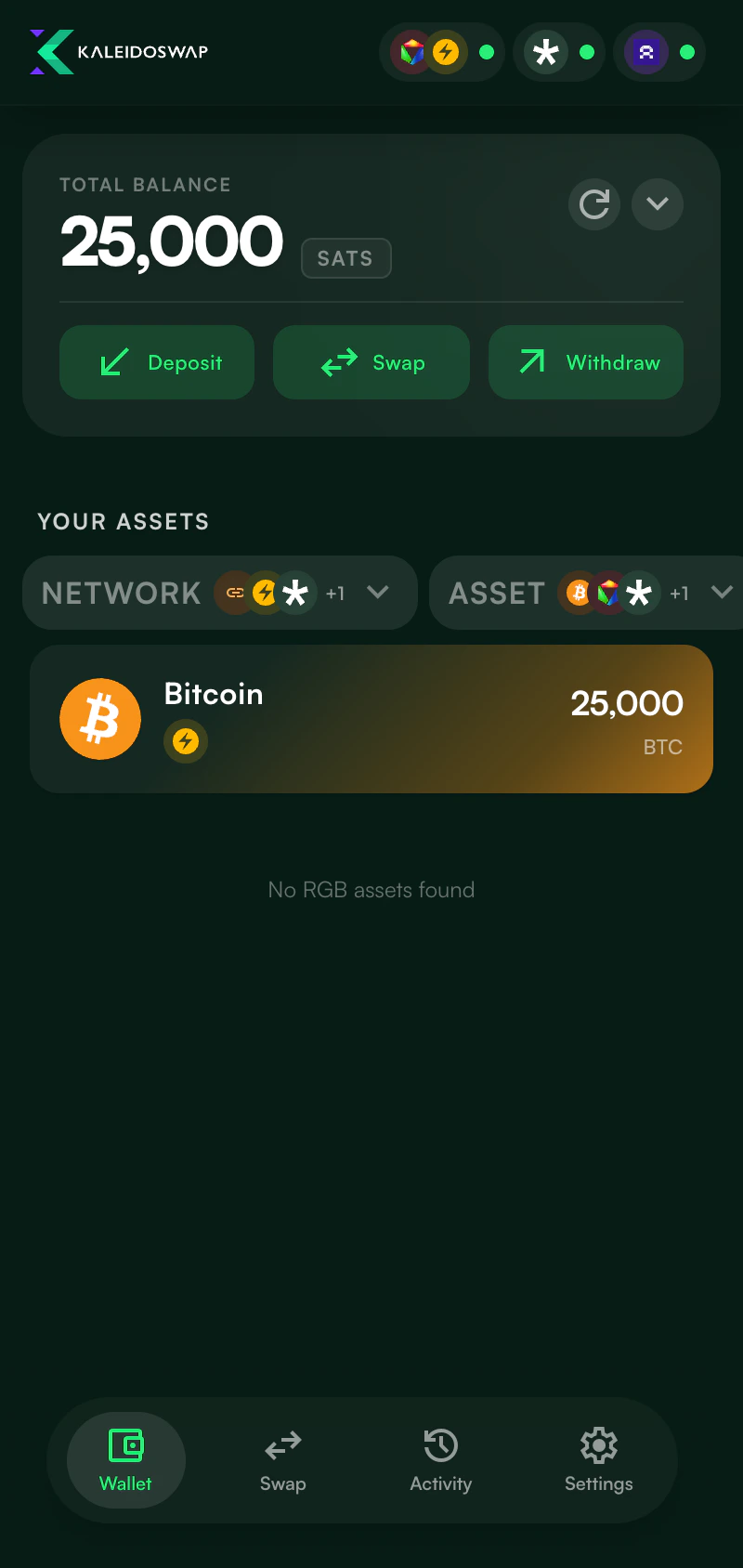
The KaleidoSwap dashboard displays all your assets:
* **BTC balance** across Spark, Arkade, Bitcoin L1, and RLN Lightning when connected
* **Spark assets** from the Spark account
* **Arkade assets** from the Arkade account
* **RGB assets** when the optional RGB Lightning Node account is connected
* **Protocol and network filters** for focusing on BTC, RGB, Spark, Arkade, Bitcoin L1, or Lightning
### Asset Details
Tap any asset to view details:
| Field | Description |
| --------------------- | --------------------------------------------------------------------- |
| **Ticker** | Short asset symbol (e.g., USDT) |
| **Name** | Full asset name |
| **Precision** | Decimal places |
| **Account** | Protocol account that owns the asset |
| **Spendable Balance** | Amount available for the selected route |
| **Network Badges** | Where the asset can be used, such as Spark, Arkade, RGB-L1, or RGB-LN |
## Sending Payments
The KaleidoSwap Extension automatically detects the payment type based on what you paste or enter in the destination field.
### Supported Destination Formats
| Format | Detected As | Example |
| --------------------- | --------------------------------- | ----------------------------- |
| **BOLT11 invoice** | Lightning payment | `lnbc1...` |
| **Lightning address** | Lightning payment | `name@example.com` |
| **LNURL-pay** | Lightning payment | `lnurl1...` |
| **RGB invoice** | RGB asset transfer | `rgb:...` |
| **Bitcoin address** | On-chain payment | `bc1q...`, `3...`, `1...` |
| **Spark address** | Spark transfer | Spark address string |
| **Arkade route** | Arkade transfer or offboard route | Arkade-compatible destination |
### Send Flow
Paste or type the destination address, invoice, or pubkey. The KaleidoSwap Extension auto-detects the payment type.
For addresses and keysend, enter the amount in sats or BTC. For invoices, the amount is pre-filled from the invoice.
Review the payment details:
* Destination
* Amount
* Selected route/account
* Fee or route notes when available
Click **Send** to execute the payment. A status screen shows the result.
## Receiving Payments
Generate invoices and addresses to receive supported assets across Spark, Arkade, Bitcoin L1, Lightning, and RGB, depending on the selected asset and connected account.
### Viewing Balances
The KaleidoSwap dashboard displays all your assets:
* **BTC balance** across Spark, Arkade, Bitcoin L1, and RLN Lightning when connected
* **Spark assets** from the Spark account
* **Arkade assets** from the Arkade account
* **RGB assets** when the optional RGB Lightning Node account is connected
* **Protocol and network filters** for focusing on BTC, RGB, Spark, Arkade, Bitcoin L1, or Lightning
### Asset Details
Tap any asset to view details:
| Field | Description |
| --------------------- | --------------------------------------------------------------------- |
| **Ticker** | Short asset symbol (e.g., USDT) |
| **Name** | Full asset name |
| **Precision** | Decimal places |
| **Account** | Protocol account that owns the asset |
| **Spendable Balance** | Amount available for the selected route |
| **Network Badges** | Where the asset can be used, such as Spark, Arkade, RGB-L1, or RGB-LN |
## Sending Payments
The KaleidoSwap Extension automatically detects the payment type based on what you paste or enter in the destination field.
### Supported Destination Formats
| Format | Detected As | Example |
| --------------------- | --------------------------------- | ----------------------------- |
| **BOLT11 invoice** | Lightning payment | `lnbc1...` |
| **Lightning address** | Lightning payment | `name@example.com` |
| **LNURL-pay** | Lightning payment | `lnurl1...` |
| **RGB invoice** | RGB asset transfer | `rgb:...` |
| **Bitcoin address** | On-chain payment | `bc1q...`, `3...`, `1...` |
| **Spark address** | Spark transfer | Spark address string |
| **Arkade route** | Arkade transfer or offboard route | Arkade-compatible destination |
### Send Flow
Paste or type the destination address, invoice, or pubkey. The KaleidoSwap Extension auto-detects the payment type.
For addresses and keysend, enter the amount in sats or BTC. For invoices, the amount is pre-filled from the invoice.
Review the payment details:
* Destination
* Amount
* Selected route/account
* Fee or route notes when available
Click **Send** to execute the payment. A status screen shows the result.
## Receiving Payments
Generate invoices and addresses to receive supported assets across Spark, Arkade, Bitcoin L1, Lightning, and RGB, depending on the selected asset and connected account.
 ### Receive Tabs
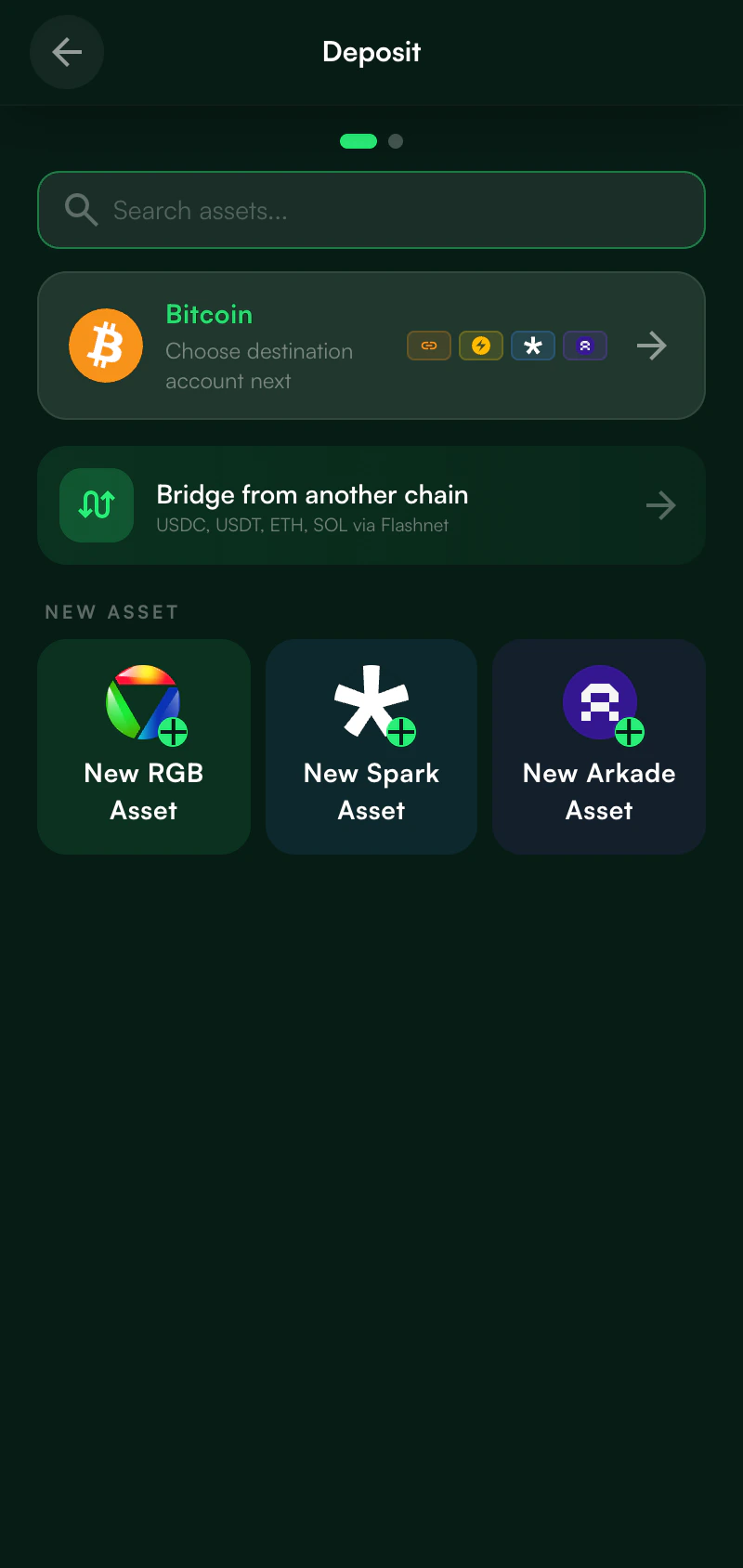
Available receive methods depend on the selected asset and connected account:
| Route | What It Generates |
| -------------- | ------------------------------------------------------------- |
| **Spark** | Spark address or Spark Lightning invoice |
| **Arkade** | Arkade address, boarding address, or compatible receive route |
| **Bitcoin L1** | Bitcoin address for on-chain receive |
| **Lightning** | BOLT11 invoice where the selected account supports it |
| **RGB** | RGB invoice or RGB Lightning invoice when RLN is connected |
### Receive Flow
Choose BTC or another supported asset.
Pick an available account route, such as Spark, Arkade, Bitcoin L1, Lightning, or RGB.
Create the invoice or address. A QR code is displayed along with the text value.
* **Copy** the invoice/address to clipboard
* **Show QR** for the sender to scan
* Lightning invoices show an **expiration countdown**
## Deposit and Withdraw
### Deposit
Deposit BTC or supported assets into the selected account:
1. Click **Deposit** on the dashboard
2. Choose the asset and route
3. Generate an address or invoice
4. Send funds from an external wallet or service
### Withdraw
Withdraw sends from the selected account to a detected destination:
1. Click **Withdraw** on the dashboard
2. Paste a Bitcoin address, Lightning invoice, Lightning address, LNURL, RGB invoice, Spark address, or Arkade destination
3. Enter the amount
4. Review the suggested route and confirm
## Activity History
View all your transactions in the **Activity** tab:
### Transaction List
* Lists all recent transactions
* Each entry shows: type, amount, status, and timestamp
* Filter by transaction type or status
### Transaction Details
Click any transaction to see:
* Full transaction details
* Transaction ID
* Amounts and fees
* Status
* Timestamp
## Settings
Access settings from the gear icon or bottom navigation.
### Receive Tabs
Available receive methods depend on the selected asset and connected account:
| Route | What It Generates |
| -------------- | ------------------------------------------------------------- |
| **Spark** | Spark address or Spark Lightning invoice |
| **Arkade** | Arkade address, boarding address, or compatible receive route |
| **Bitcoin L1** | Bitcoin address for on-chain receive |
| **Lightning** | BOLT11 invoice where the selected account supports it |
| **RGB** | RGB invoice or RGB Lightning invoice when RLN is connected |
### Receive Flow
Choose BTC or another supported asset.
Pick an available account route, such as Spark, Arkade, Bitcoin L1, Lightning, or RGB.
Create the invoice or address. A QR code is displayed along with the text value.
* **Copy** the invoice/address to clipboard
* **Show QR** for the sender to scan
* Lightning invoices show an **expiration countdown**
## Deposit and Withdraw
### Deposit
Deposit BTC or supported assets into the selected account:
1. Click **Deposit** on the dashboard
2. Choose the asset and route
3. Generate an address or invoice
4. Send funds from an external wallet or service
### Withdraw
Withdraw sends from the selected account to a detected destination:
1. Click **Withdraw** on the dashboard
2. Paste a Bitcoin address, Lightning invoice, Lightning address, LNURL, RGB invoice, Spark address, or Arkade destination
3. Enter the amount
4. Review the suggested route and confirm
## Activity History
View all your transactions in the **Activity** tab:
### Transaction List
* Lists all recent transactions
* Each entry shows: type, amount, status, and timestamp
* Filter by transaction type or status
### Transaction Details
Click any transaction to see:
* Full transaction details
* Transaction ID
* Amounts and fees
* Status
* Timestamp
## Settings
Access settings from the gear icon or bottom navigation.
 ### Accounts
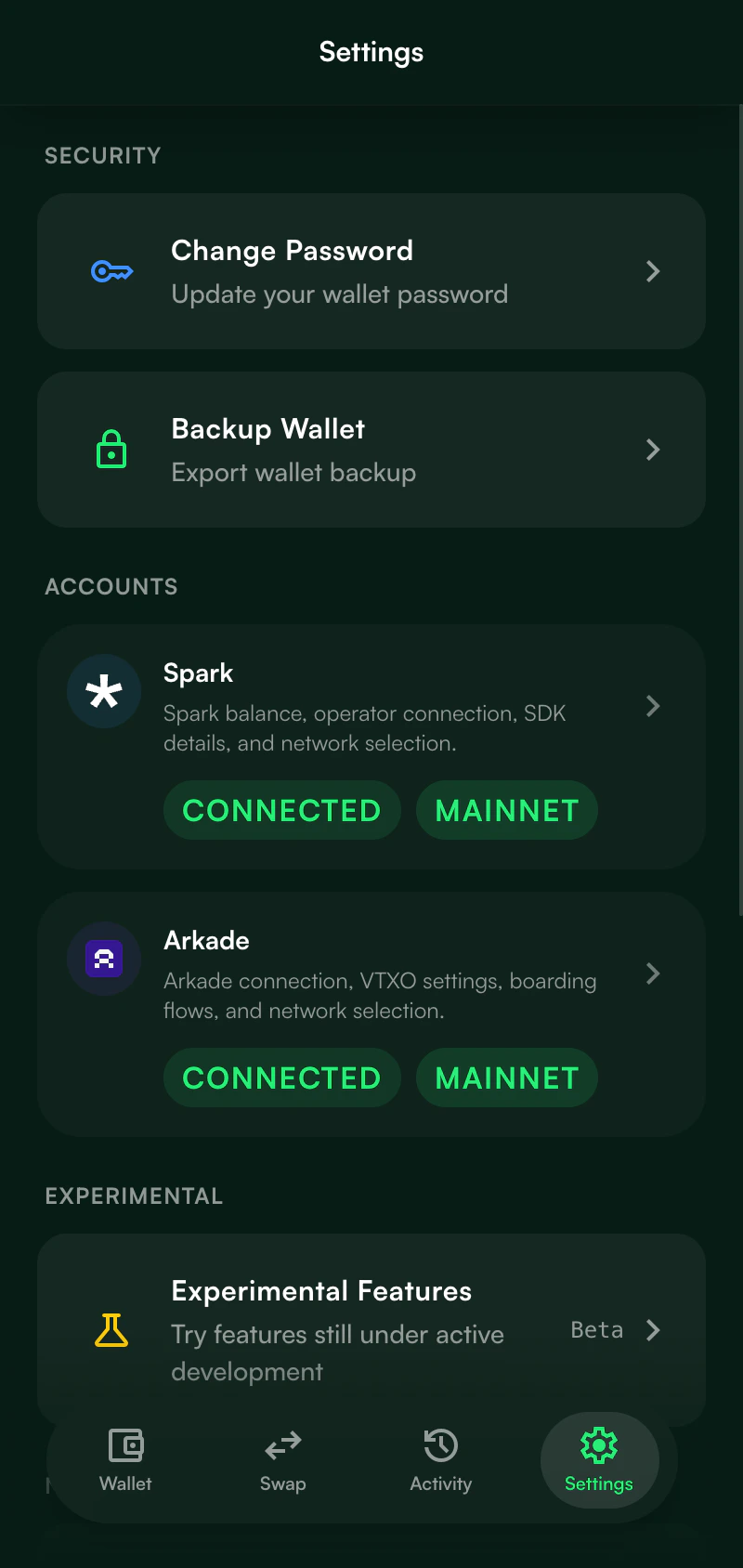
* **Spark** - Network selection, SDK details, and connection status
* **Arkade** - Network selection, VTXO settings, boarding flows, and lifecycle settings
* **RGB & Lightning** - Optional RLN account, available through experimental settings
### Nostr Account
* View your **public key** (npub)
* View/export the session private key when available
* Use the derived identity for supported DApp signing flows
Never share your Nostr private key (nsec). Anyone with this key can sign events and act as you.
### Preferences
| Setting | Options |
| --------------------- | -------------------------------------- |
| **Currency** | USD, EUR, etc. |
| **Bitcoin units** | sats, BTC, mBTC, or fiat display modes |
| **Theme** | Dark mode |
| **Auto-lock Timeout** | Configurable inactivity timeout |
### Security
* **Change Password** - Update your wallet password
* **Backup Wallet** - Reveal the recovery phrase after password confirmation, publish an encrypted Nostr settings backup, create an RGB node backup file, and upload an existing RGB backup archive to Nostr
### About
* Extension version and build information
* Links to documentation, GitHub, and support
### Accounts
* **Spark** - Network selection, SDK details, and connection status
* **Arkade** - Network selection, VTXO settings, boarding flows, and lifecycle settings
* **RGB & Lightning** - Optional RLN account, available through experimental settings
### Nostr Account
* View your **public key** (npub)
* View/export the session private key when available
* Use the derived identity for supported DApp signing flows
Never share your Nostr private key (nsec). Anyone with this key can sign events and act as you.
### Preferences
| Setting | Options |
| --------------------- | -------------------------------------- |
| **Currency** | USD, EUR, etc. |
| **Bitcoin units** | sats, BTC, mBTC, or fiat display modes |
| **Theme** | Dark mode |
| **Auto-lock Timeout** | Configurable inactivity timeout |
### Security
* **Change Password** - Update your wallet password
* **Backup Wallet** - Reveal the recovery phrase after password confirmation, publish an encrypted Nostr settings backup, create an RGB node backup file, and upload an existing RGB backup archive to Nostr
### About
* Extension version and build information
* Links to documentation, GitHub, and support