

Interface Overview
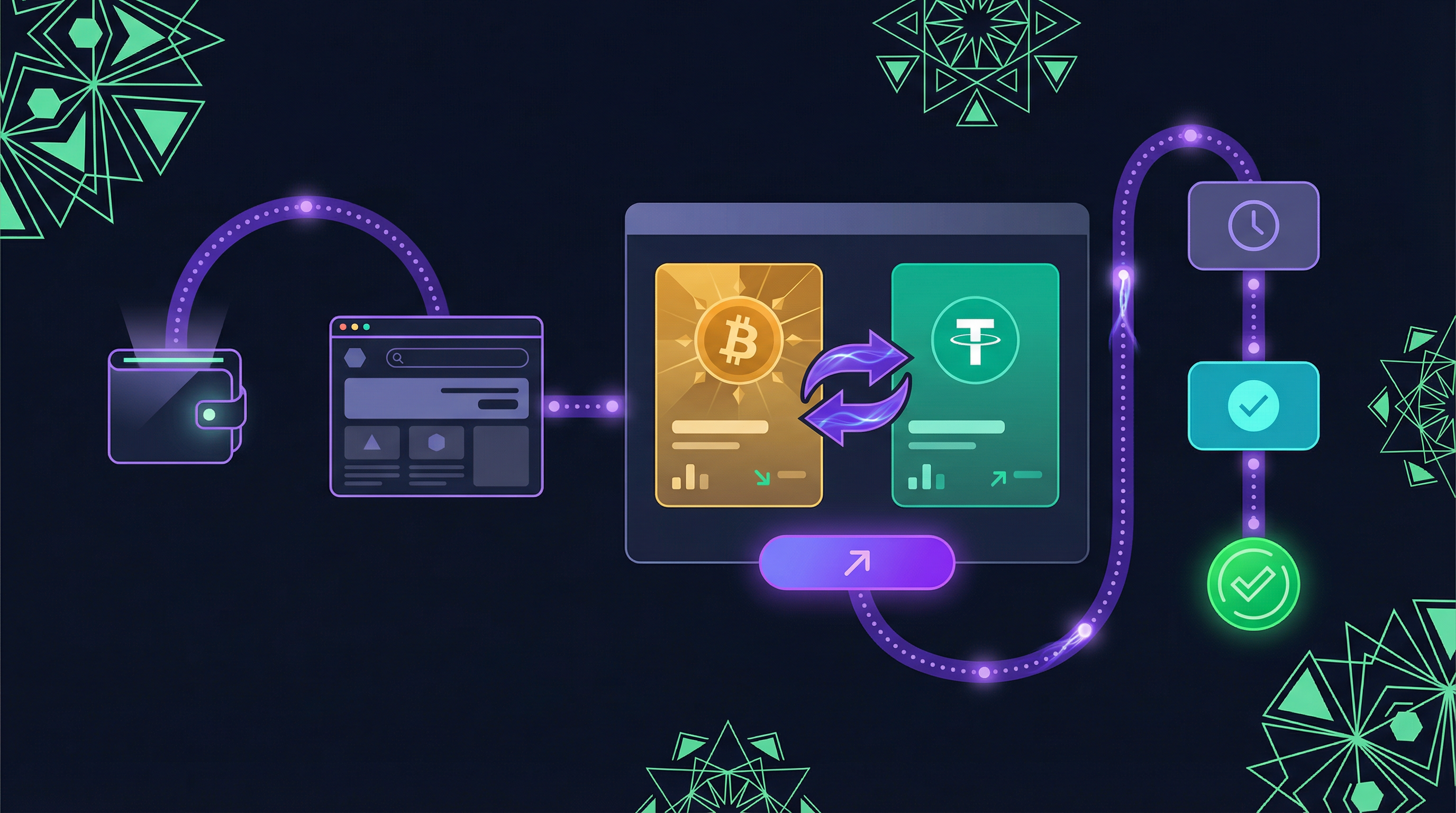
- From Card — select the asset and amount you’re swapping from
- To Card — select the asset you want to receive
- Recipient Address — enter the address where the swapped asset will be sent
- Quote Display — real-time exchange rate and fees
- Swap Button — create the order and proceed to the order page
Swap Cards
From Card (Source)
The top card represents what you’re swapping from:| Element | Description |
|---|---|
| Asset Selector | Click to choose the source asset |
| Network Badge | Shows the protocol layer (RGB Lightning, etc.) |
| Amount Input | Enter how much you want to swap |
| USD Equivalent | Approximate USD value |
| Min/Max | Amount limits for this pair |
To Card (Destination)
The bottom card shows what you’ll receive:| Element | Description |
|---|---|
| Asset Selector | Click to choose the destination asset |
| Network Badge | Shows the protocol layer |
| Amount Display | Calculated output amount (read-only) |
| USD Equivalent | Approximate USD value |
Recipient Address
Below the To card, enter the address where you want to receive the swapped asset. The format depends on the destination layer:| Destination Layer | Address Format | Example |
|---|---|---|
| Lightning | BOLT11 invoice | lnbc1... |
| Bitcoin on-chain | Bitcoin address | bc1q... |
| RGB | RGB invoice | rgb:... |
Creating a Swap Order
Select Source Asset
Click the asset selector on the From card and choose the asset you want to trade.
Select Destination Asset
Click the asset selector on the To card and choose the asset you want to receive.
Enter Amount
Type the amount you want to swap in the From field. The To amount updates automatically based on the live quote.
Enter Recipient Address
Enter the address where you want to receive the swapped asset. This is where the maker will send your funds after the swap is executed.
Open Confirmation Modal
Click the Swap button. A confirmation modal appears with a summary of the order.
Confirmation Modal
Before the order is created, the modal shows:- Assets - From and To assets with amounts
- Rate - The exchange rate for this order
- Fees - Breakdown of all fees
- Recipient Address - Where the swapped asset will be sent
- Confirm / Cancel - Final action buttons
After confirming, the order is created and you are redirected to the order page. This does not execute the swap yet — you still need to pay the deposit.
Order Page
After creating an order, you are redirected to the Order Page (/[orderId]). This is where you pay and track your order.
Deposit Instructions
The order page displays:| Element | Description |
|---|---|
| QR Code | Scannable QR code with the deposit address or invoice |
| Deposit Address / Invoice | The exact address or invoice to pay (copyable) |
| Amount to Pay | The exact amount you need to send |
| Expiry Countdown | Time remaining before the order expires |
| Pay with Wallet | Button to pay directly from your connected wallet (if supported) |
Payment Methods
You can pay the deposit in several ways:Pay with Connected Wallet
Pay with Connected Wallet
If your wallet supports the payment type (e.g., Lightning via WebLN), a Pay with Wallet button appears on the order page. Click it to pay directly without leaving the browser.
Copy and Pay Manually
Copy and Pay Manually
Click the Copy button next to the deposit address or invoice. Paste it into your wallet app and send the exact amount shown.
Scan QR Code
Scan QR Code
Use a mobile wallet to scan the QR code displayed on the order page.
Order Status Timeline
The order page shows a visual timeline of your order’s progress:| Status | What It Means |
|---|---|
| Awaiting Deposit | The order is created. Pay the deposit to proceed. |
| Payment Confirmed | Your payment has been received and confirmed. |
| Executing Swap | The maker is processing the swap. |
| Swap Completed | The swapped asset has been sent to your recipient address. |
Special Scenarios
Rate Decision: If the exchange rate changes significantly while your order is being processed, you may be asked to accept or reject the new rate. See Advanced Features for details. Payment Issues: If you overpay or underpay, the order page will display the discrepancy and instructions for resolution. See Advanced Features for details.Asset Selection
Choosing Assets
- Click the asset selector button
- Browse available assets or search
- Select an asset to populate the card
Network/Protocol Selection
Each asset may support multiple protocols:| Protocol | Description | Speed |
|---|---|---|
| RGB on Lightning | RGB assets via Lightning | Fast |
| RGB On-chain | RGB assets on Bitcoin | 10+ min |
| BTC Lightning | Native Bitcoin Lightning | Fast |
Valid Trading Pairs
Not all assets can be traded with each other. Invalid pairs are automatically filtered out. Common pairs include:- BTC / USDT
- BTC / XAUT
Amount Handling
Input Methods
From Amount (Exact Input):- Enter the exact amount you want to spend
- The To amount is calculated based on the quote
- Click on the To card’s input
- Enter the exact amount you want to receive
- The From amount is calculated
Display Units
For BTC, you can choose to display amounts in:- BTC - Standard Bitcoin notation (e.g., 0.00021)
- sats - Satoshi notation (e.g., 21,000)
Min/Max Limits
Each trading pair has limits:- Minimum - Smallest tradeable amount
- Maximum - Largest tradeable amount
Quote Information
The quote section displays:| Info | Description |
|---|---|
| Rate | Current exchange rate (e.g., 1 BTC = 95,000 USDT) |
| Fee | Network and protocol fees |
| Expires | Quote validity countdown |
Swap Arrow
Click the swap arrow to:- Reverse the trade direction
- Swap From and To assets
- Amounts are also swapped
Real-Time Updates
The interface provides live updates:- Quote Refresh - Rates update via WebSocket
- Price Changes - Highlighted when price moves
- Validation - Instant feedback on amounts
- Connection Status - Wallet connectivity shown
Tips for Best Results
Act Quickly After Getting a Quote
Act Quickly After Getting a Quote
Complete your order promptly. Quotes expire after a short period, and the rate may change.
Double-Check Recipient Address
Double-Check Recipient Address
Verify the recipient address carefully before confirming. The maker will send the swapped asset to this address and it cannot be changed after order creation.
Use Lightning for Speed
Use Lightning for Speed
RGB on Lightning offers faster settlement. Prefer Lightning routes when available.
Pay Exact Amounts
Pay Exact Amounts
Pay the exact deposit amount shown on the order page. Overpaying or underpaying may cause issues with your order.
Common Issues
| Issue | Solution |
|---|---|
| Quote loading slowly | Check internet, refresh page |
| Amount validation error | Adjust to within min/max limits |
| Wallet not responding | Ensure wallet is unlocked |
| Order expired | Create a new order with a fresh quote |
| Payment not detected | Wait for confirmation, check transaction status in your wallet |