

Accounts
The KaleidoSwap Extension derives multiple protocol accounts from one recovery phrase:Asset Management
Viewing Balances
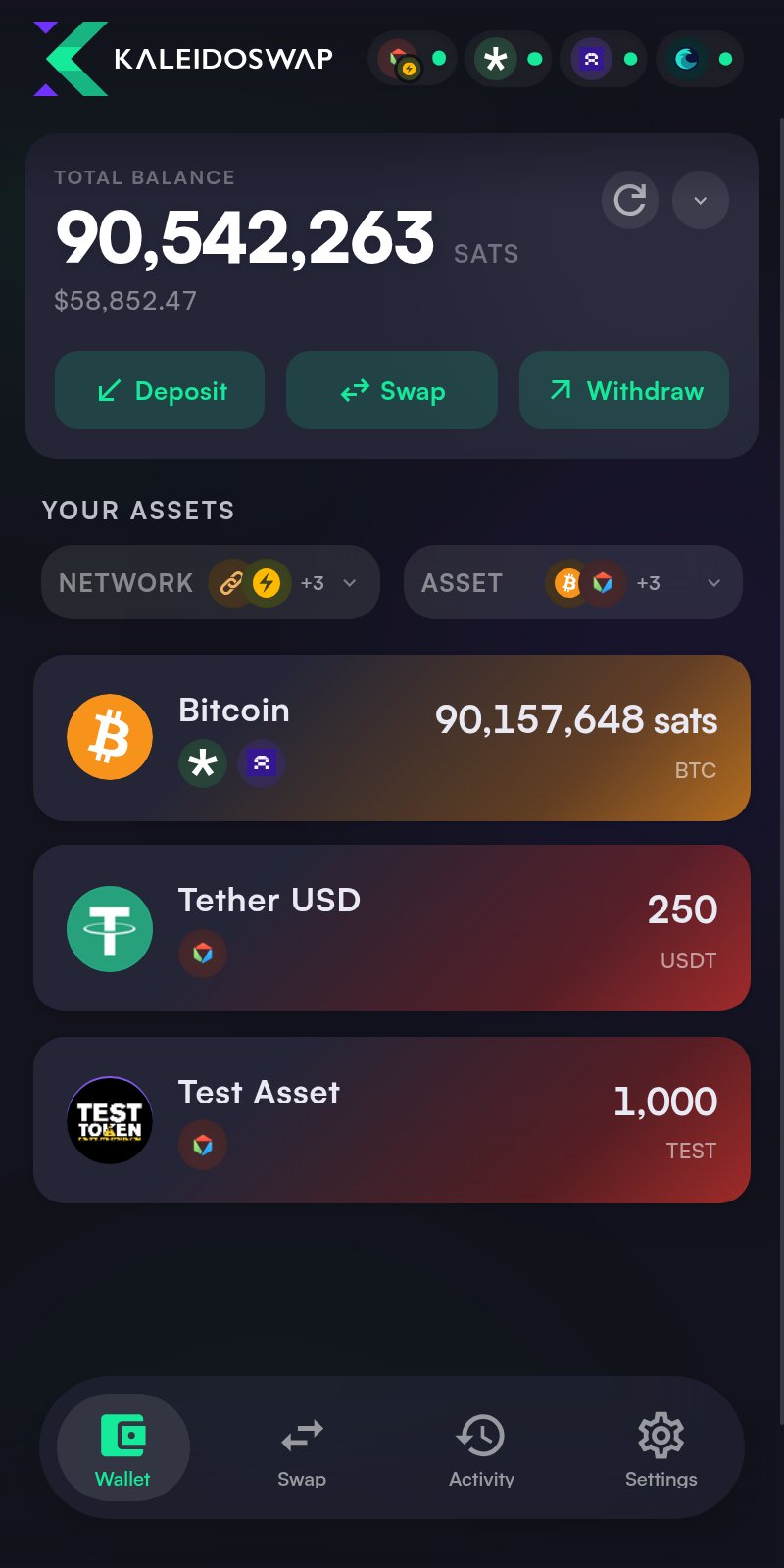
The KaleidoSwap dashboard displays all your assets:- BTC balance across Spark, Arkade, Liquid, Bitcoin L1, and RLN Lightning when connected
- Spark assets from the Spark account
- Arkade assets from the Arkade account
- Liquid assets from the Liquid account
- RGB assets from the node-less RGB-L1 account, or from RLN when connected
- Protocol and network filters for focusing on a single backing or network slice
Hiding Assets
You can hide assets you don’t want on the dashboard from the manage-assets view. Hidden assets keep their balances; they are just removed from the list until you unhide them.Asset Details
Tap any asset to view details: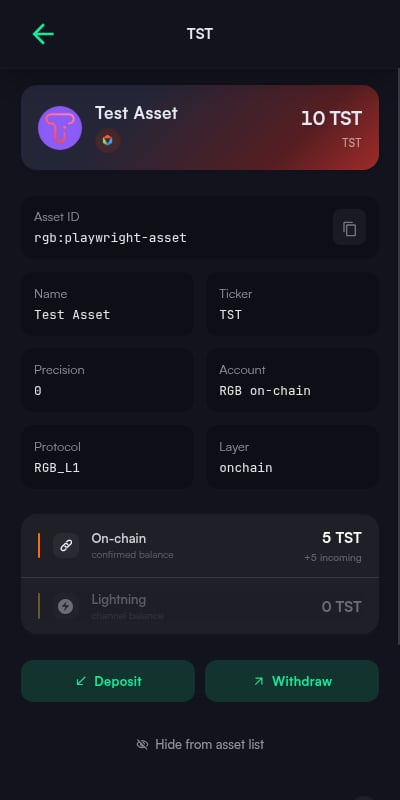
Sending Payments
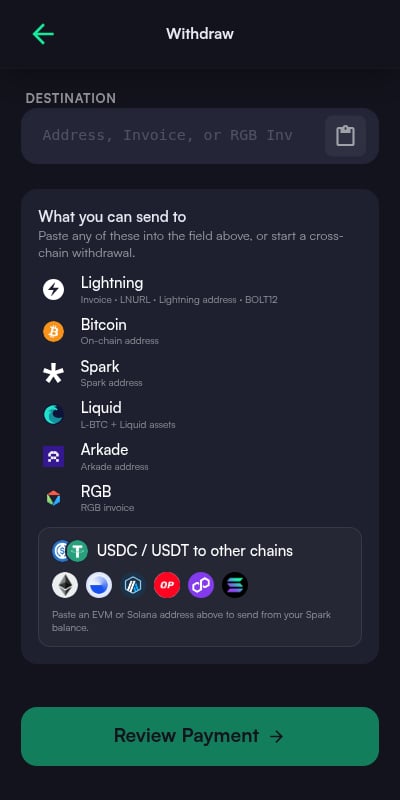
The KaleidoSwap Extension automatically detects the payment type based on what you paste or enter in the destination field.Supported Destination Formats
Send Flow
1
Enter Destination
Paste or type the destination address, invoice, or pubkey. The KaleidoSwap Extension auto-detects the payment type.
2
Enter Amount
For addresses and keysend, enter the amount in sats or BTC. For invoices, the amount is pre-filled from the invoice. Max fills the spendable balance and, for on-chain sends, reserves the network fee so the transaction can actually broadcast.
3
Review
Review the payment details:
- Destination
- Amount
- Selected route/account
- Fee or route notes when available
4
Confirm
Click Send to execute the payment. A status screen shows the result.
Receiving Payments
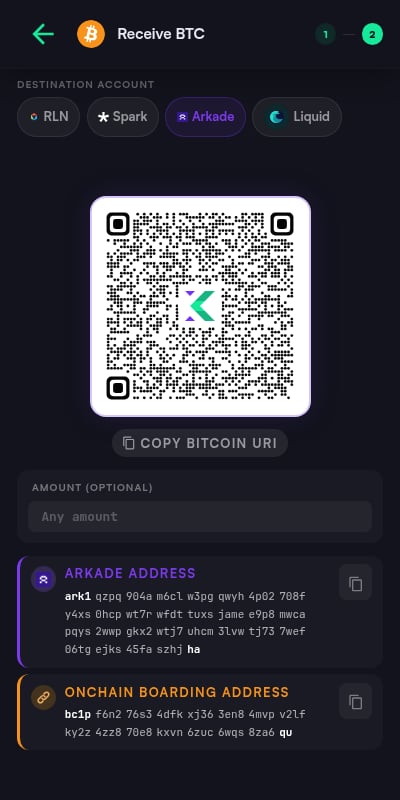
Generate invoices and addresses to receive supported assets across Spark, Arkade, Liquid, Bitcoin L1, Lightning, and RGB, depending on the selected asset and connected account.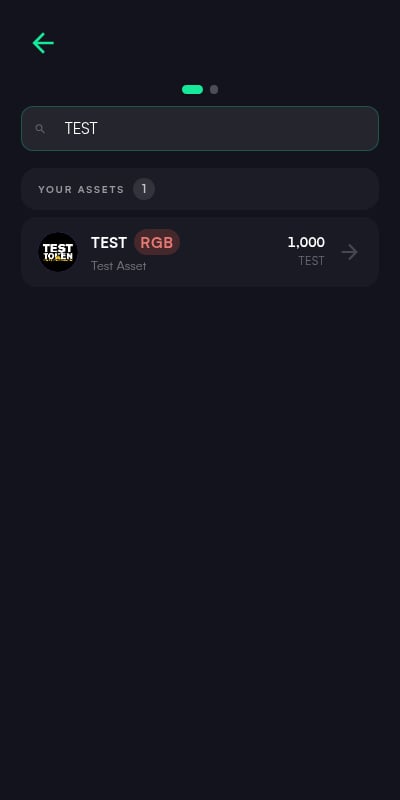
Receive Tabs
Available receive methods depend on the selected asset and connected account:Receive Flow
1
Select Asset
Choose BTC or another supported asset.
2
Select Route
Pick an available account route, such as Spark, Arkade, Liquid, Bitcoin L1, Lightning, or RGB.
3
Generate
Create the invoice or address. A QR code is displayed along with the text value.
4
Share
- Copy the invoice/address to clipboard
- Show QR for the sender to scan
- Expired Lightning invoices are flagged and can be regenerated
Deposit and Withdraw
Deposit
Deposit BTC or supported assets into the selected account:- Click Deposit on the dashboard
- Choose the asset and route
- Generate an address or invoice
- Send funds from an external wallet or service
Withdraw
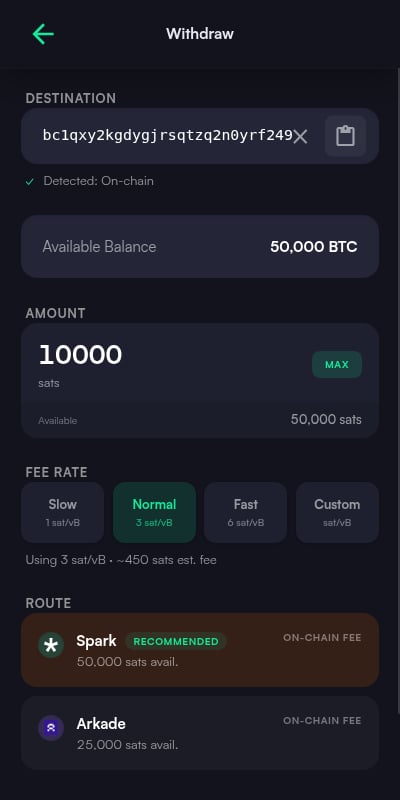
Withdraw sends from the selected account to a detected destination:- Click Withdraw on the dashboard
- Paste a Bitcoin address, Lightning invoice, Lightning address, LNURL, RGB invoice, Liquid address or
liquidnetwork:URI, Spark address, or Arkade destination - Enter the amount
- Review the suggested route and confirm
Activity History
View all your transactions in the Activity tab:Transaction List
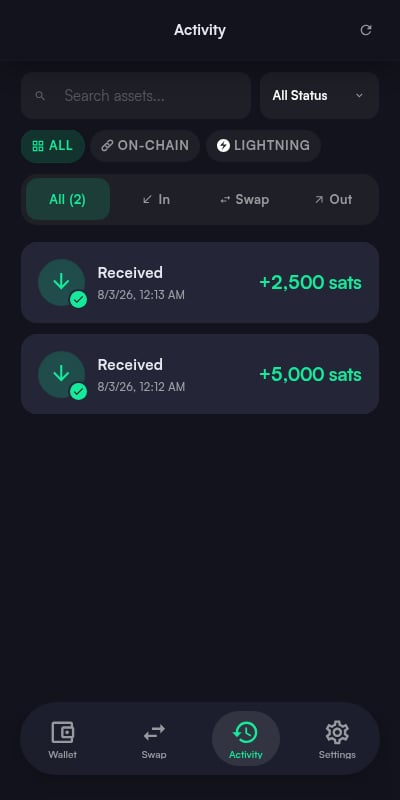
- Lists recent transactions across all connected accounts; sources load concurrently and render progressively
- Each entry shows: type, amount, status, carrier network, and timestamp
- Filter by transaction type or status
Transaction Details
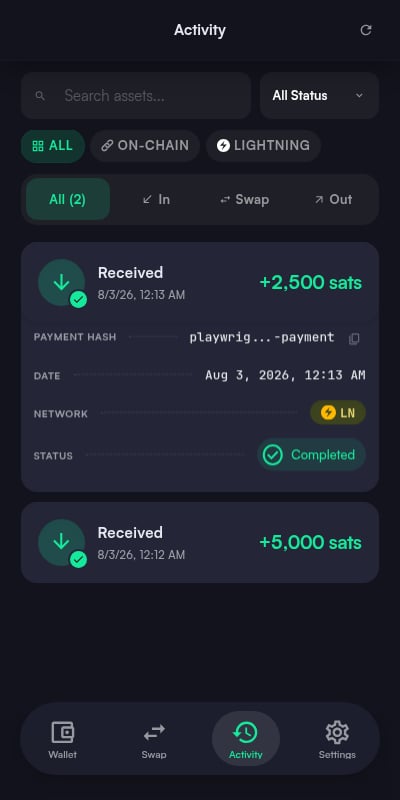
Click any transaction to see:- Full transaction details
- Transaction ID
- Amounts and fees
- Carrier and status
- Timestamp
Settings
Access settings from the gear icon or bottom navigation.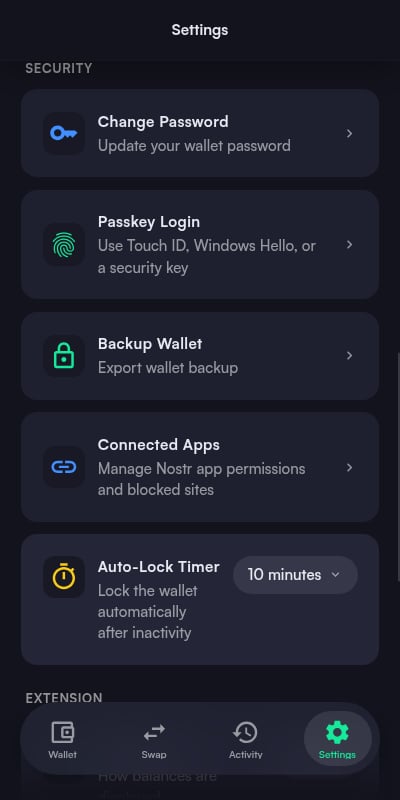
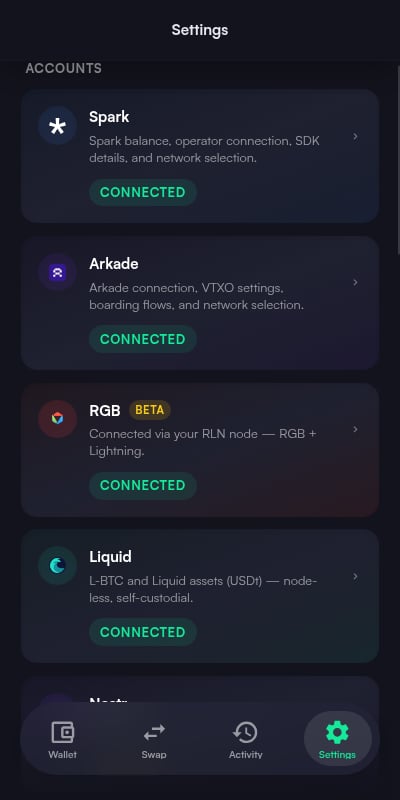
Accounts
- Spark - Network selection, SDK details, and connection status
- Arkade - Network selection, VTXO settings, boarding flows, lifecycle settings, and an optional rotating-address (HD) mode with restore via gap scan
- Liquid - Network selection and the Esplora/waterfalls sync endpoint (a fast default is provided; you can supply your own)
- RGB-L1 - Network selection plus the Esplora indexer and RGB proxy endpoints for the node-less account
- RGB & Lightning - Optional RLN account (direct URL or NWC), available through experimental settings
KaleidoSwap Handle
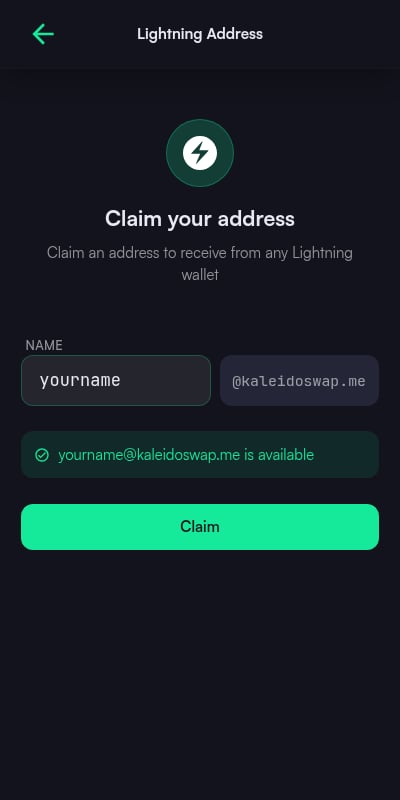
You can claim a Lightning address handle (yourname@kaleidoswap.me) from Settings. The handle checks availability live as you type, links to your wallet for receiving Lightning payments, and is automatically re-linked when you restore the wallet.
Nostr
- Nostr Account - View your public key (npub), view/export the session private key when available, and re-derive or import your identity
- Connected Apps - Review every site and app connected to the wallet and revoke individual capabilities
- Nostr Connect (NIP-46) - Generate a
bunker://connection string so external Nostr apps can request signatures remotely - Nostr Wallet Connect - Pair external apps to the wallet over NWC with a QR code, and set amount-aware budgets
Security
- Change Password - Update your wallet password
- Passkey Login - Register or remove a passkey (WebAuthn) for unlocking the wallet
- Auto-lock Timeout - Set the inactivity timeout, from 1 minute to 1 hour, or never
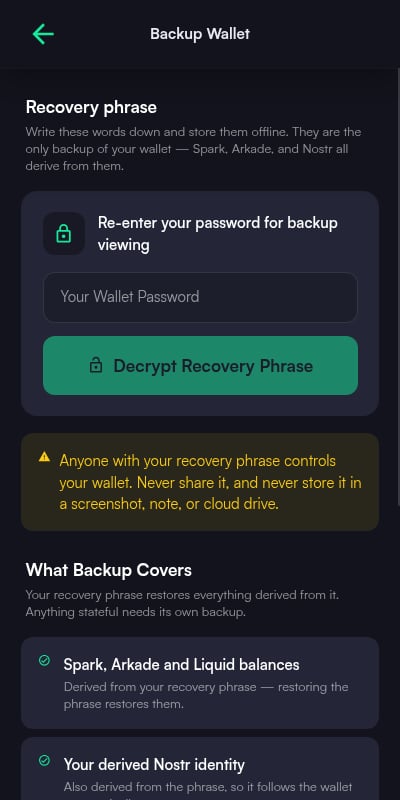
- Backup Wallet - Reveal the recovery phrase after password confirmation and manage RGB backups (encrypted VSS cloud backup and local backup files for the node-less account, or an RGB node backup archive for RLN)
App
Display preferences are inline pickers on the main Settings page:
The auto-lock timeout lives under Settings > Security.
Full-Tab View
The wallet normally opens in the browser side panel (or a toolbar popup). For a larger workspace, use Settings > Open in Full Tab to open the wallet as a full browser tab.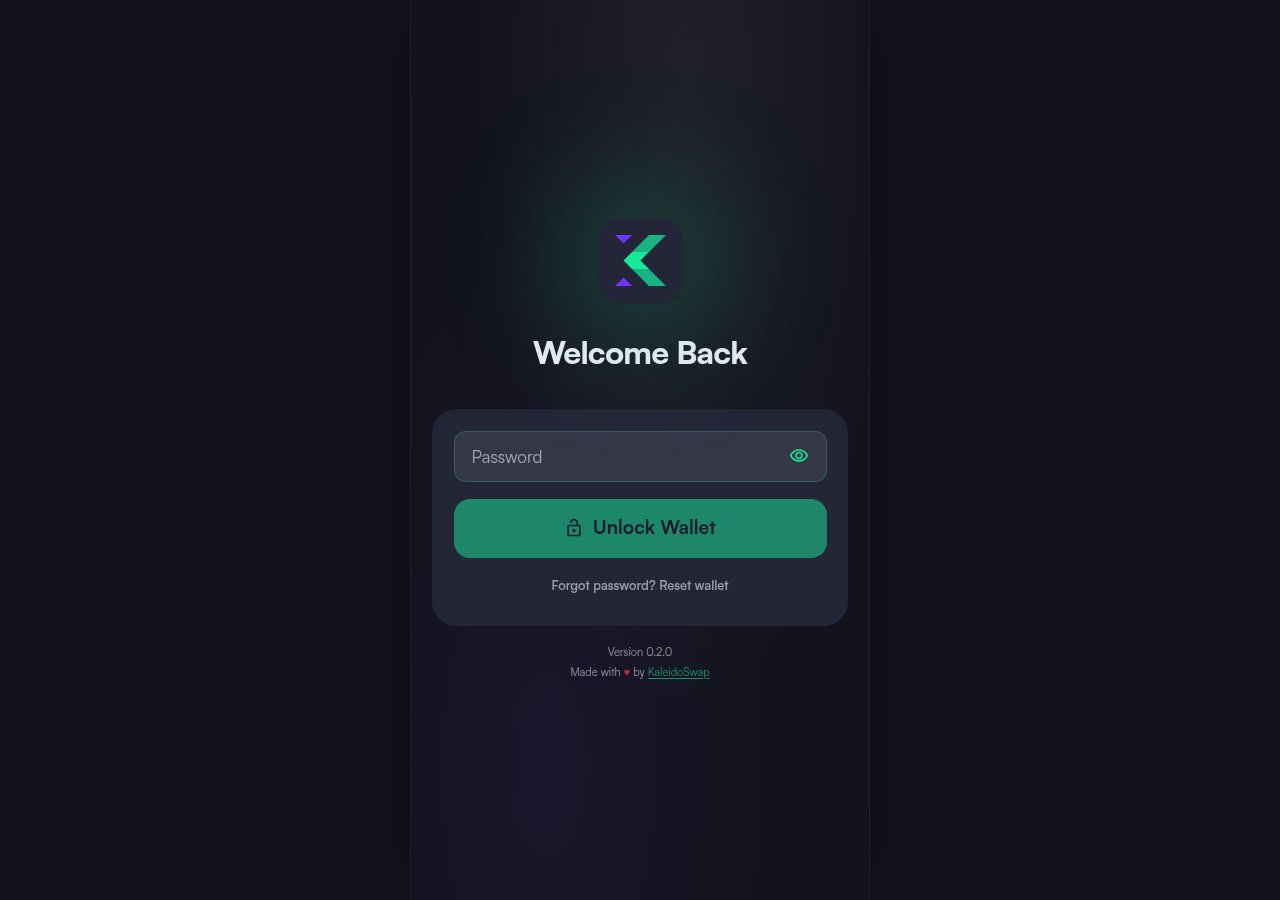
About
- Extension version and build information
- Links to documentation, GitHub, and support
Access the Beta
Request access to the KaleidoSwap Extension closed beta.