

Overview
Opening a channel through an LSP involves four general steps:- Connect to LSP.
- Configure Channel Order.
- Make Payment.
- Channel Opening.
Step 1: Connect to LSP
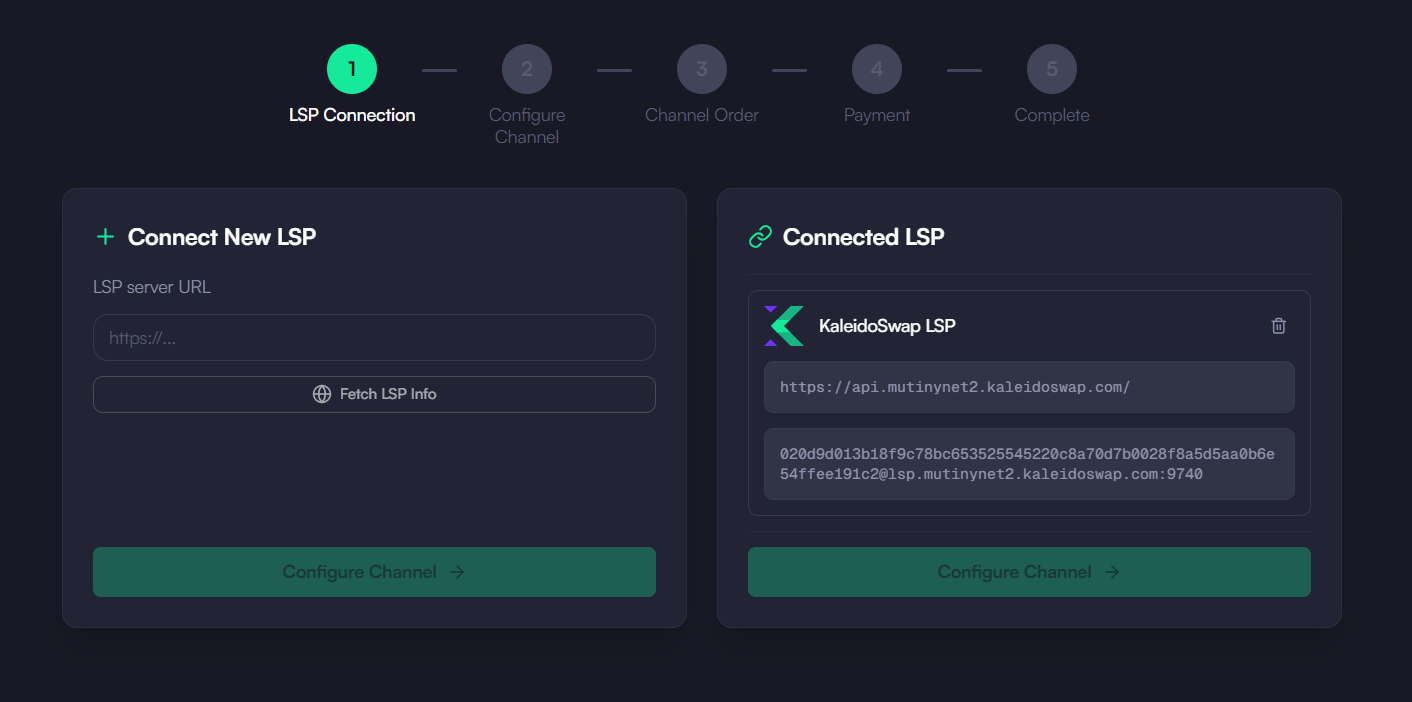
First, after going to the “Buy Channel” tab in the Channels section, you’ll need to connect to an LSP:- Enter the LSP URL or select the default KaleidoSwap LSP.
- The LSP connection string will be displayed.
- Confirm the connection to proceed.
Step 2: Configure Channel Order
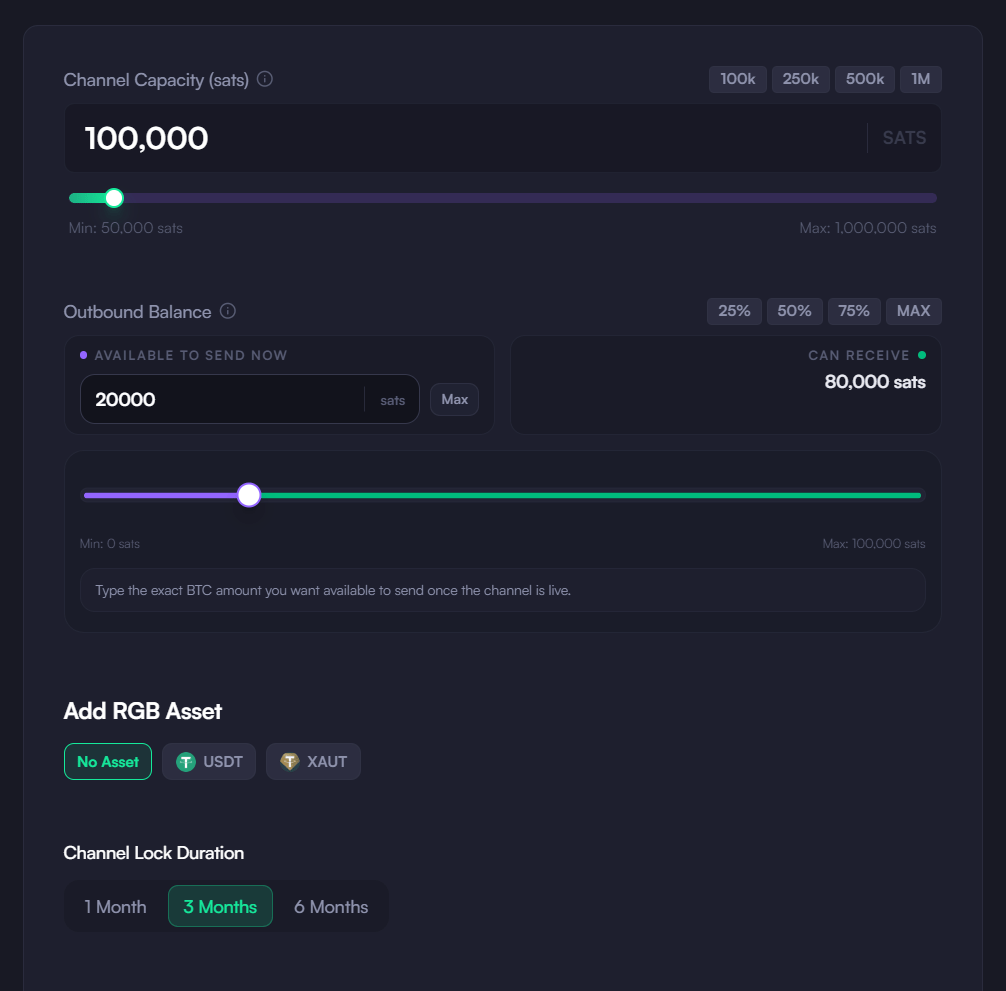
- Set the total channel capacity (in satoshis). This represents the total size of the channel (min: 50,000 sats; max: 16,777,215 sats).
- Choose the outbound liquidity you want to purchase. This is the amount the LSP commits to your channel, while the remaining capacity becomes your inbound liquidity. Example: For a 1M sat channel with 700k outbound, you’ll have 300k inbound capacity.
- Select how long the LSP needs to guarantee to keep the channel open (channel duration), among the following options:
- 1 month (4,320 blocks)
- 3 months (12,960 blocks)
- 6 months (25,920 blocks)
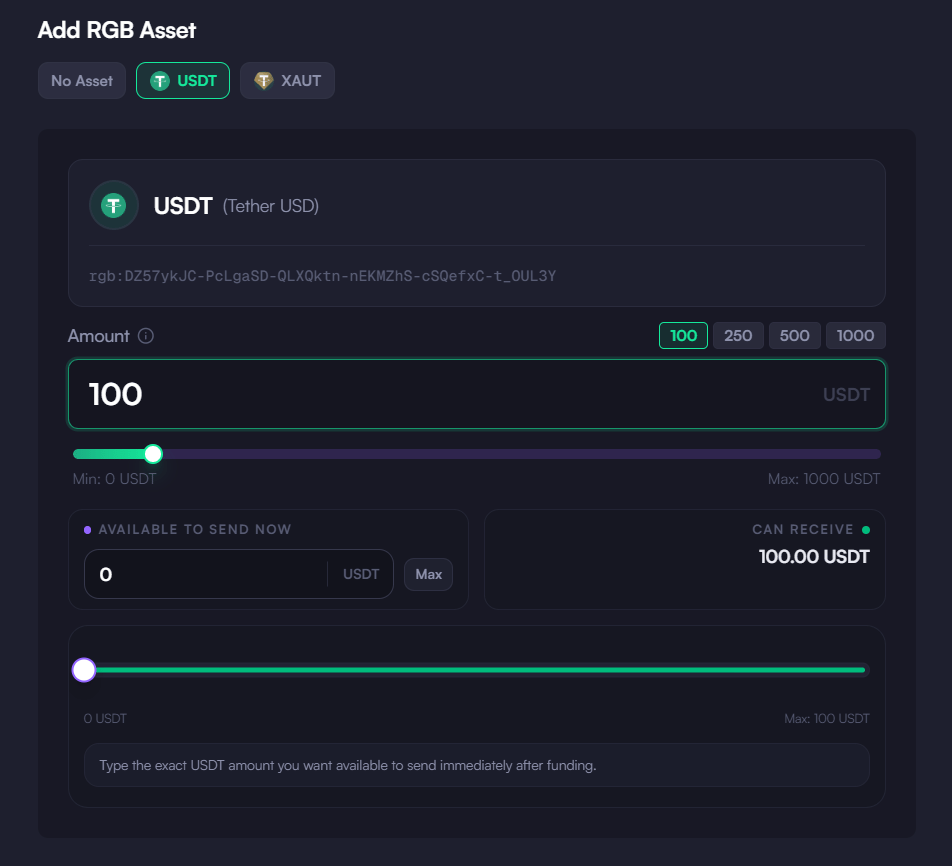
- [Optional] Request an RGB Asset in your channel by enabling the “Add Asset” option and selecting the asset you want. You will then need to specify the amount of that asset you want the LSP to commit. Note that currently RGB assets are provided on the LSP side only.
Step 3: Make Payment
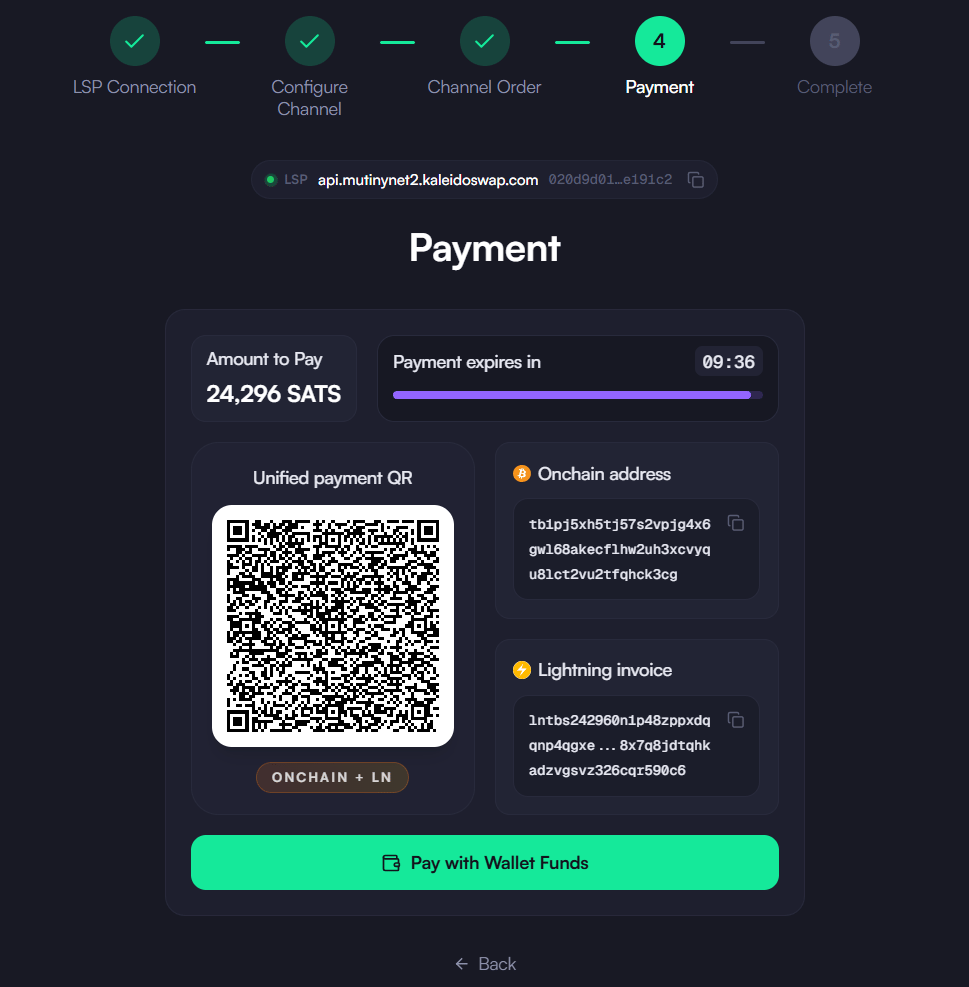
To proceed with the channel opening, you will need to execute the payment. You will pay for:- Your outbound liquidity, i.e. the funds that you will have immediately available to spend.
- The LSP service fee, which is different for each provider. Below you can find the fee structure of the default KaleidoSwap LSP.
KaleidoSwap LSP Fee Structure
When using KaleidoSwap LSP:- Setup fee: 1,000 sats (one-time, per channel)
- Capacity fee: 1% of total channel capacity
- Duration fee: 1 sat per block of guaranteed channel lifetime
- The total fee is capped between a minimum of 2,000 sats and a maximum of 100,000 sats
- Example calculation:
Lightning Payment
- Scan the QR code or copy the Lightning invoice.
- Pay either using an external Lightning wallet or the KaleidoSwap wallet funds (if available) by selecting the “Pay with wallet funds” checkbox.
- Amount includes:
- Channel capacity.
- LSP fees (base + time-lock).
- Network fees.
On-chain Payment
- Send Bitcoin to the provided address either using an external wallet or the KaleidoSwap wallet funds (if available) by selecting the “Pay with wallet funds” checkbox.
- Include the exact amount shown.
- Wait for blockchain confirmations.
Step 4: Channel Opening
After payment confirmation:- The LSP initiates channel opening.
- Wait for the blockchain confirmations advertised by the LSP (around 6 blocks, roughly an hour on mainnet).
- Your channel becomes active with the specified:
- Total capacity.
- Outbound liquidity.
- RGB assets (if requested).
- Lock period.
Order States
Your channel order can be in these states:CREATED: Order accepted by the LSP, waiting for payment and channel opening.COMPLETED: Channel successfully opened.FAILED: An error occurred during the process.
CREATED state, its payment moves through these sub-states:
EXPECT_PAYMENT: Waiting for your payment.HOLD: Lightning payment received and held while the channel opens.PAID: Payment settled.TIMEOUT/EXPIRED: No payment arrived in time and the order lapsed.
Refund Policy
If the channel opening fails after the payment:- Note your
order_id(shown in the interface). - Contact support with your order ID.
- Provide payment proof if requested.
- Refund will be processed after verification.
Best Practices
-
Capacity Planning
- Calculate your required outbound/inbound ratio.
- Consider future RGB asset needs.
- Account for fees in your budget.
-
During Order
- Keep the application open during payment.
- Save your order ID.
- Wait for all the required confirmations.
-
After Opening
- Verify channel parameters.
- Test with small transactions.
- Monitor channel status.
Support
For assistance:- Check the FAQ
- Join our Telegram Group
- Open an issue on GitHub
Next: Asset Swaps
Download the Desktop App
Get the latest KaleidoSwap Desktop App release for macOS, Windows, or Linux.