

Depositing Bitcoin
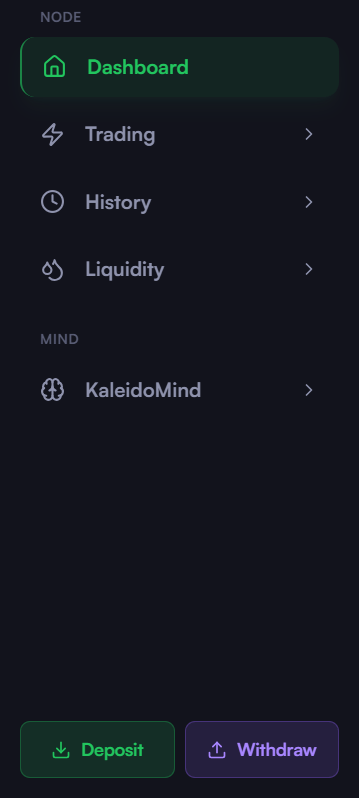
- Click on “Deposit”: you can find it among the “Quick Actions” section on the left menu.
- Select Asset: Select “BTC” (Bitcoin) from the drop-down menu (it should be already selected by default) and then “Continue”. You will be taken to the Deposit BTC screen.
- Deposit Method: On the Deposit BTC screen, choose your preferred method: On-chain or Lightning. If you select On-chain, the app shows the Bitcoin address and a QR code straight away (you can copy the address or refresh it to get a new one).
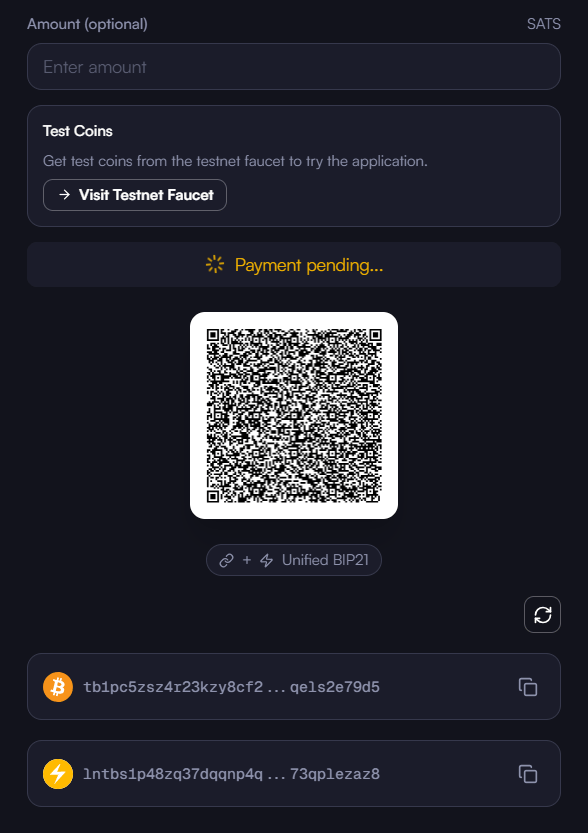
- Proceed with the deposit: If you chose On-chain, copy or scan the address (or QR code) shown on the same screen and send the desired amount of Bitcoin to it. If you chose Lightning, enter the amount you want to deposit to generate an invoice, then pay it.
Depositing RGB Assets
- Choose Asset: Repeat steps 1 and 2 in the previous section, but this time select one of the registered assets or upload one using its asset ID. To see an asset among the registered ones, your node need to have already encountered (i.e. received) it. In this example we will use test-USDT.
- Deposit Method: As in the previous section, select one of the two available methods to deposit assets: on-chain or Lightning Network.
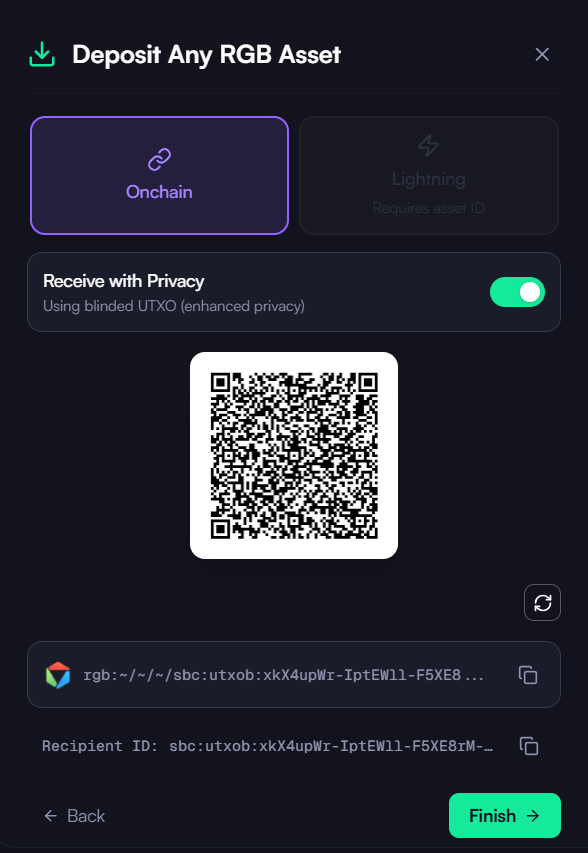
- Proceed with the deposit: If you have selected the on-chain method, then you will need to copy the automatically generated
recipient idto deposit the desired amount of assets with the corresponding id. Note that to proceed with the deposit you will need to have at least one “Colored” UTXO available, which is a specific type of UTXO required to trade RGB assets on the Bitcoin blockchain. If you don’t have any Colored UTXO available, at this step the app will allow you to generate one (assuming you have some Bitcoin balance available on your KaleidoSwap wallet) with just one click. - Generate Lightning Invoice: If you selected deposit by LN, then you will need to introduce the amount of assets you want to deposit to generate an invoice and then proceed with the deposit.
Obtaining test coins
If during the wallet creation you selected a test network to try KaleidoSwap out, you can use the following faucets to get coins and assets to be used for deposit, channel opening, swapping and withdrawal purposes:- Regtest: you can explore the functions of the RGB LN Bot on telegram (@rgb_lightning_bot).
- Signet: you can use the Mutiny Faucet by entering the desired amount of SATs you want to receive in the field “How much?”, pasting the signet Bitcoin address in the “Destination” field of the faucet and clicking “Make it rain” to receive the deposit.
Download the Desktop App
Get the latest KaleidoSwap Desktop App release for macOS, Windows, or Linux.